
OBS browser source games: set-up, sizes and fixes
A browser source is a small web browser living inside OBS. Put a game in one and your stream can run it with no download. Here is how to set it up properly, and how to fix the handful of things that usually go wrong.
By FLUNG Live team · Updated
What a browser source is
OBS Studio ships with a built-in browser engine. A Browser source loads a web page and draws it into your scene, with a transparent background if the page asks for one. Alert boxes, chat boxes, goal bars and timers are almost all browser sources, which is why most streamers have used one without thinking about it.
Games work the same way. The page draws the game, reads your chat in the background and updates itself. Because it is a web page, there is nothing to install, nothing to update and nothing to uninstall: delete the source and it is gone. Streamlabs Desktop and Twitch Studio have the same kind of source, and a link that works in one works in the others.
Adding a game as a browser source
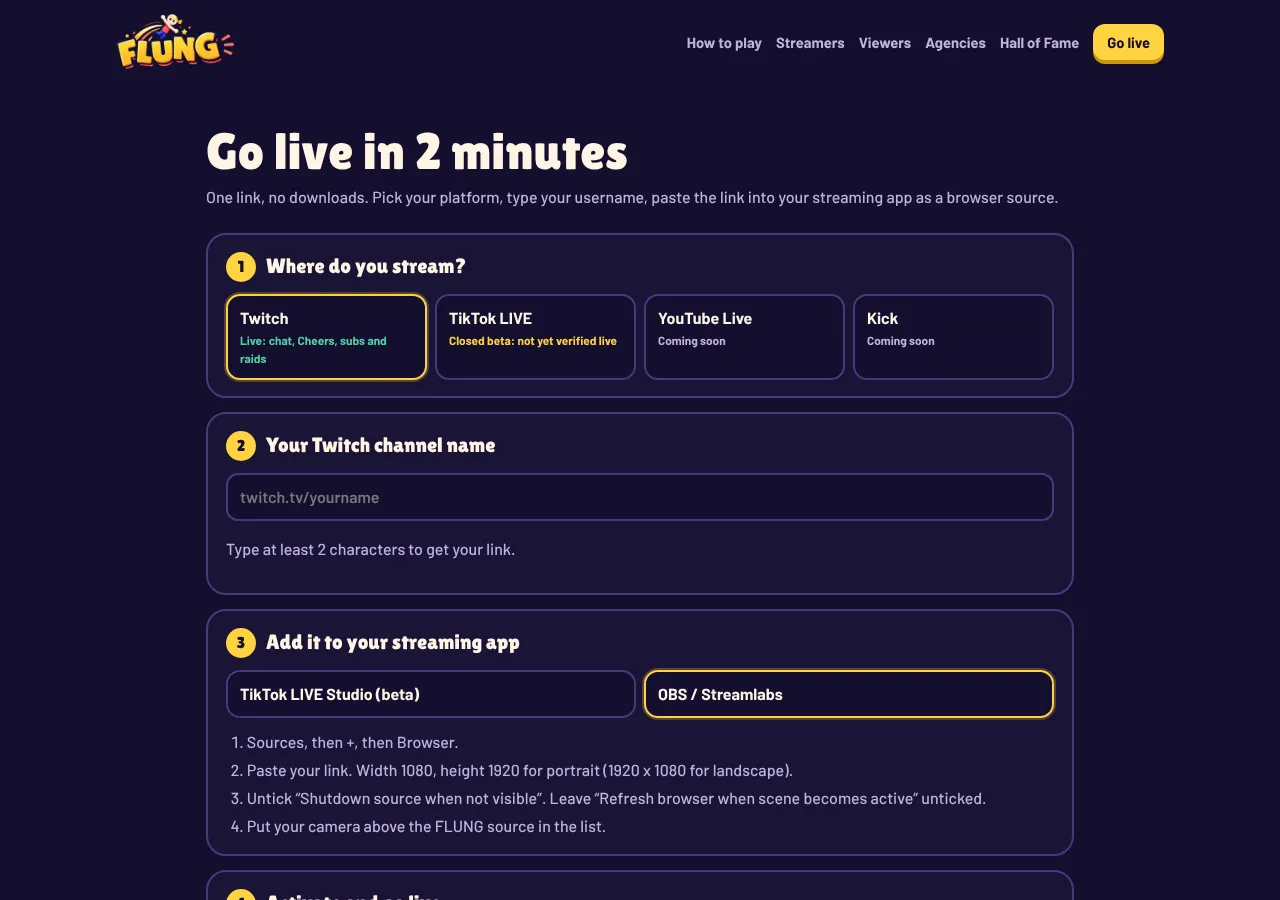
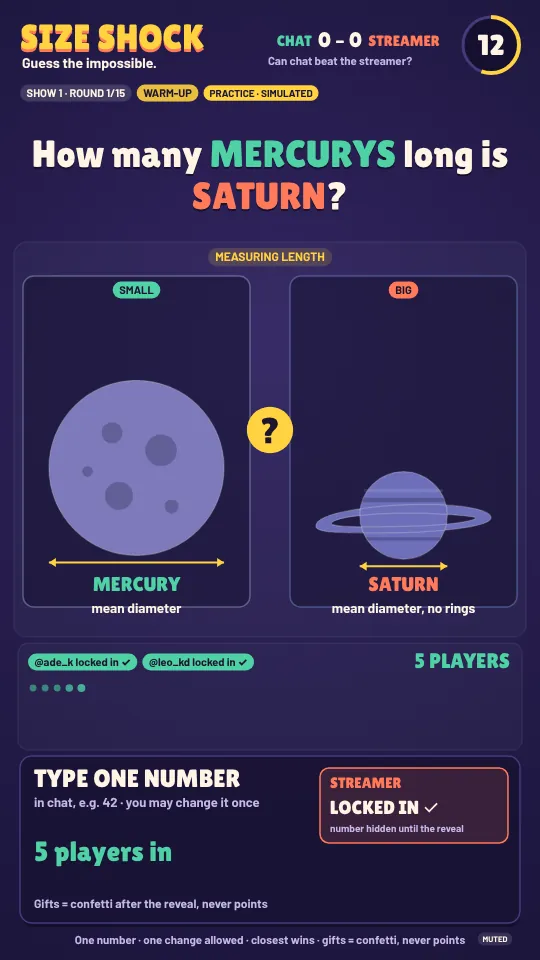
- Get the link. For SIZE SHOCK, WORLD SHOCK or HIVE MIND, type your Twitch channel on the game page and copy the link it builds, for example from the WORLD SHOCK set-up. For FLUNG Island, the set-up page walks you through your private overlay link.
- Create the source. In the Sources panel click +, choose Browser, and name it after the game.
- Paste the URL into the URL field.
- Set width and height to your canvas size (see below), then press OK.
- Order the layers. Put your camera above the game so your face is never covered.
Sizes and layouts
Set the browser source to the same size as your canvas and let OBS scale it, rather than dragging the corners of the layer. A web page laid out for 1920 pixels wide and then squeezed looks blurry; a page told it is 1920 wide lays itself out crisply.
| Stream | Width × height | What you get |
|---|---|---|
| Landscape (most Twitch streams) | 1920 × 1080 | Question across the top, play area and leaderboard side by side |
| Portrait (vertical and mobile-first) | 1080 × 1920 | Stacked layout, larger text, room for a camera |
The FLUNG games read the size of the source and pick the layout themselves, so the same link works in both. If you stream at 1280 × 720, a 1920 × 1080 source scaled down to fit is still the sharpest option.
The settings that matter
- Shutdown source when not visible: off. If this is ticked, switching to another scene unloads the page, and the game restarts from scratch when you come back.
- Refresh browser when scene becomes active: off. Same reason. Leave it unticked so a show carries on across scene switches.
- Control audio via OBS: your choice. Tick it if you want the game’s sound on its own mixer track so you can turn it down without muting it. The FLUNG links also accept
sound=off, and M mutes from the Interact window. - Custom CSS: leave the default. OBS adds a rule that makes the page background transparent. Do not add a background colour, or the game will sit in a solid box.
Controlling the game live
A browser source is a real browser, so it can take key presses. Right-click the source and choose Interact to open a window where your keyboard goes straight to the game. In SIZE SHOCK, WORLD SHOCK and HIVE MIND, Space skips, P pauses and M mutes; in HIVE MIND, X hides a bubble. FLUNG Island has a phone remote that arrives with your private link, and phone remote support for the SHOCK games is coming soon.
Two useful link options: &tone=gentle keeps WORLD SHOCK’s captions plain, which suits family and classroom streams, and &safe=strict makes HIVE MIND show curated answers only.
Performance
Every browser source is a small Chromium tab, and it uses some CPU and GPU like any tab would. A few habits keep things smooth:
- Keep only the browser sources you are using in active scenes. A hidden source in a scene you never visit still runs if “shutdown when not visible” is off, so delete ones you no longer need.
- If your machine is busy, tick “Use custom frame rate” in the source properties and set 30. A guessing game does not need 60 frames a second.
- If you notice encoding lag, check OBS’s stats window before blaming any one source. Game capture and the encoder usually dominate.
Common fixes
The source is blank
Check the URL is pasted in full, with no space at the start. Press Refresh cache of current page in the source properties. If your network blocks some sites, try the link in an ordinary browser first.
The game shows but chat does nothing
The channel name in the link must match your Twitch channel exactly. Chat modes such as followers-only limit who can play. You can always test with your own account by typing in your chat.
Text is blurry
The source is being stretched. Set its width and height to 1920 × 1080 (or 1080 × 1920), then right-click the layer and choose Transform → Fit to screen.
There is a black box behind the game
Make sure the link ends in bg=transparent and the Custom CSS box has not been changed. Removing and re-adding the source resets it.
Questions
What size should a browser source game be?
1920 × 1080 for a landscape stream and 1080 × 1920 for portrait. The FLUNG games read the source size and pick the right layout.
Why is my browser source black instead of transparent?
Make sure the link ends in bg=transparent, and that no custom CSS in the source properties sets a background colour.
How do I control a browser source game during a stream?
Right-click the source and choose Interact. In the SHOCK games, Space skips, P pauses and M mutes.
Does it work in Streamlabs Desktop and Twitch Studio?
Yes. Both can add a browser source, and the same link works in each.